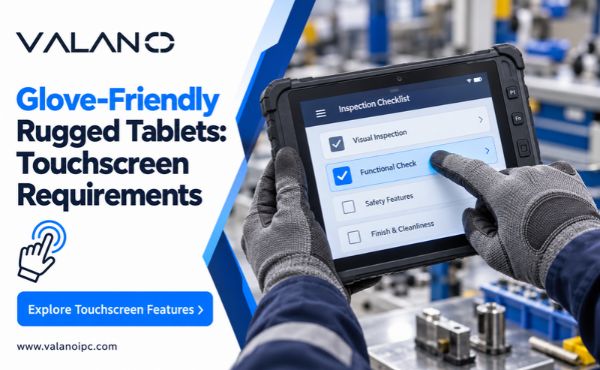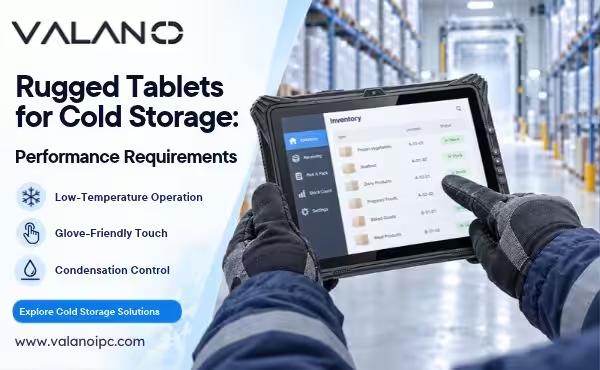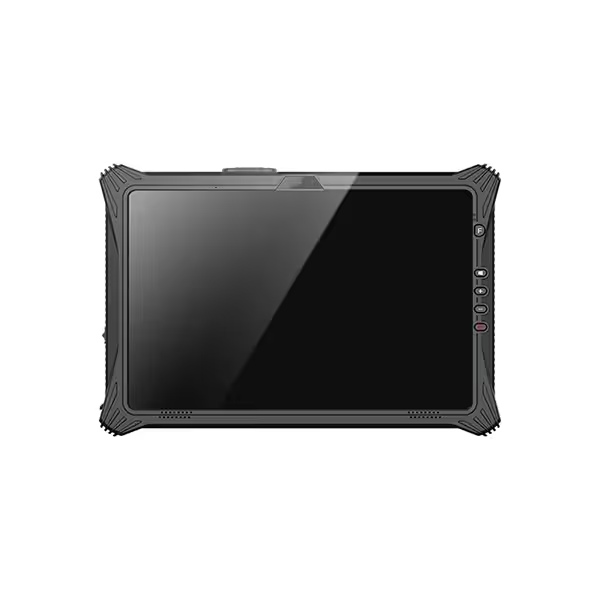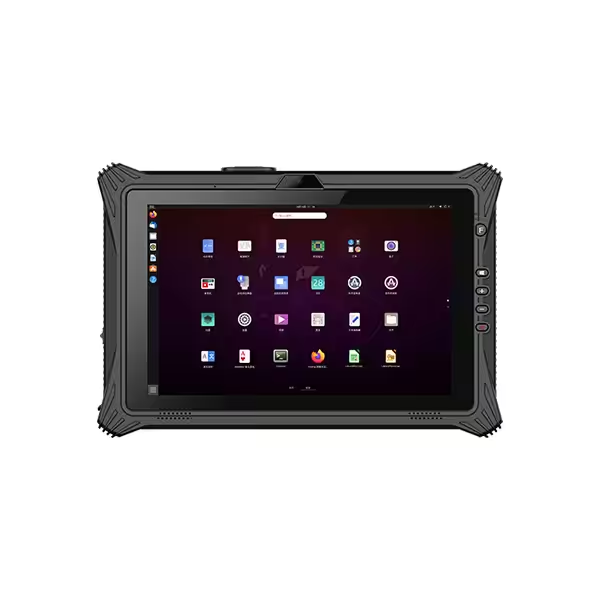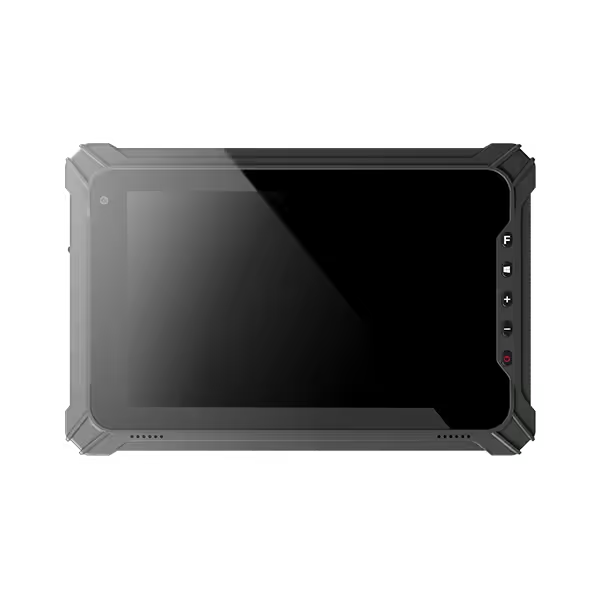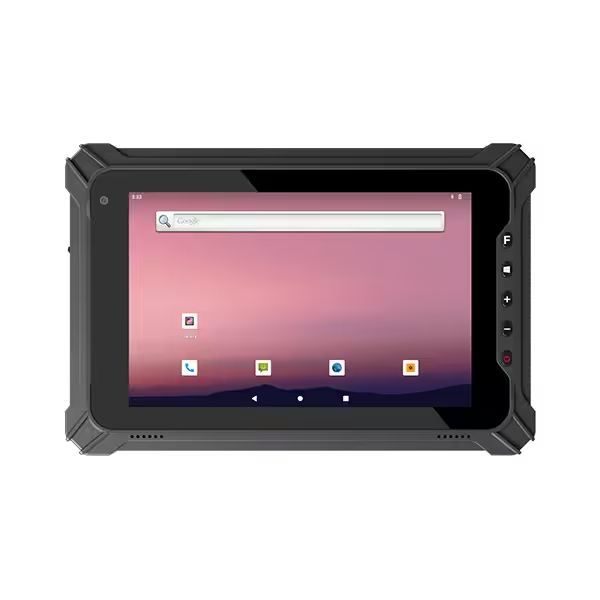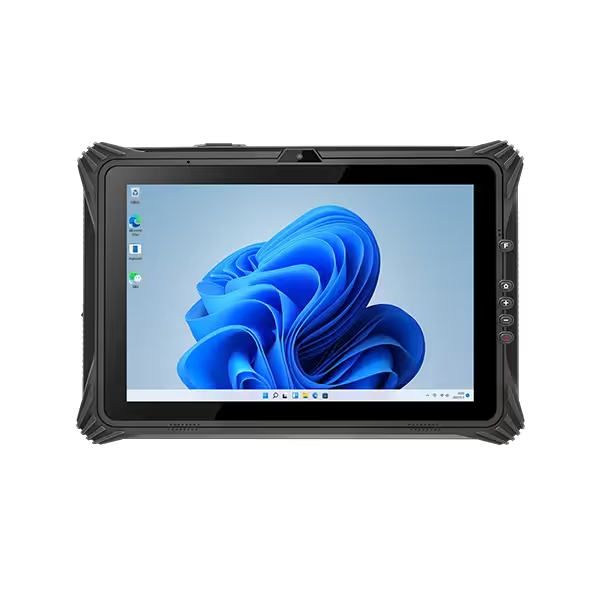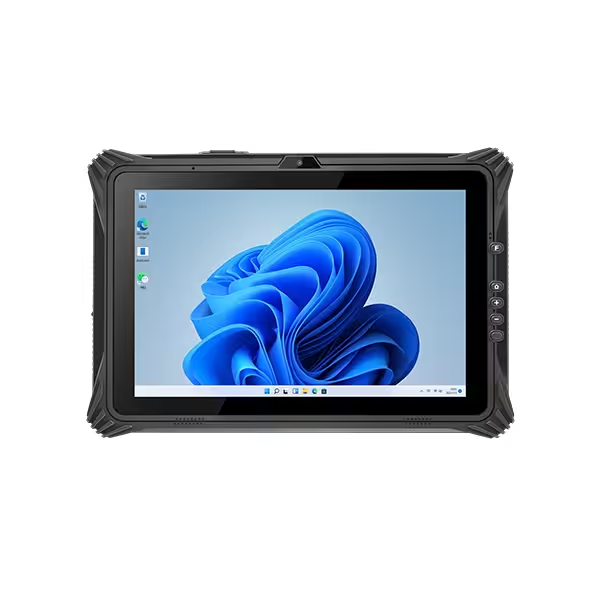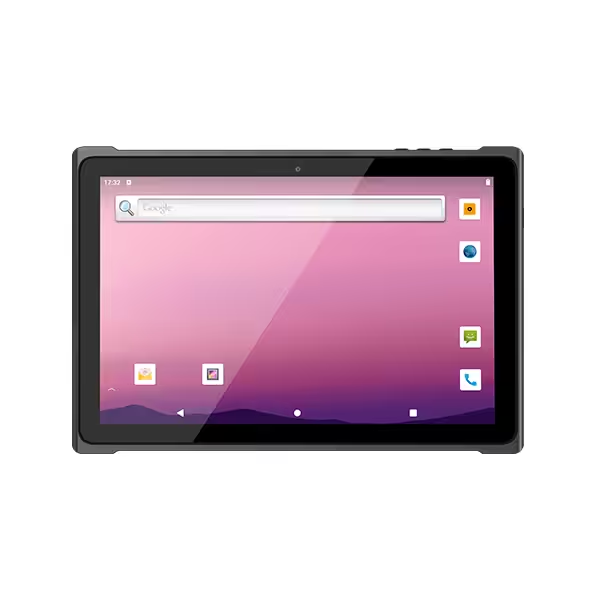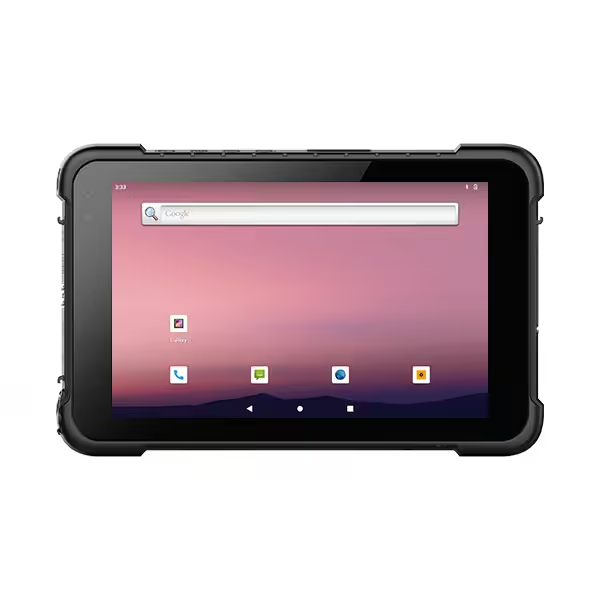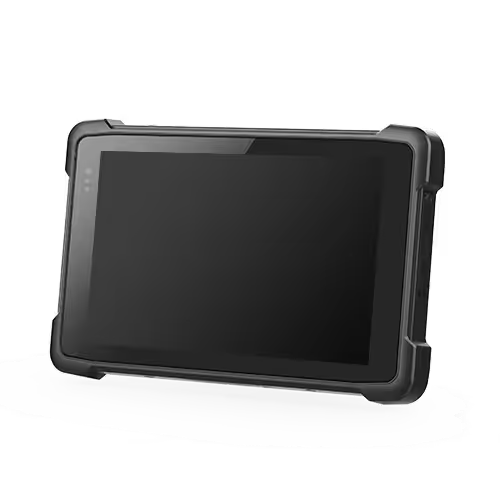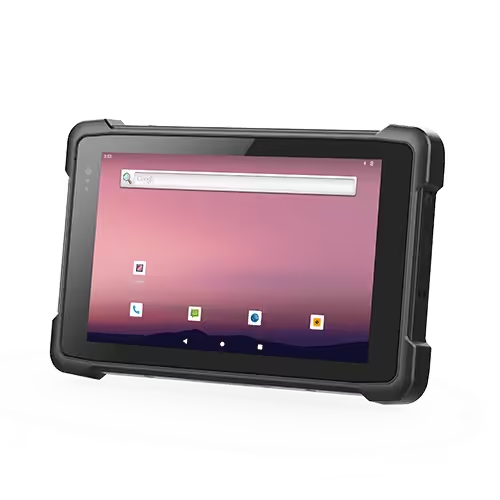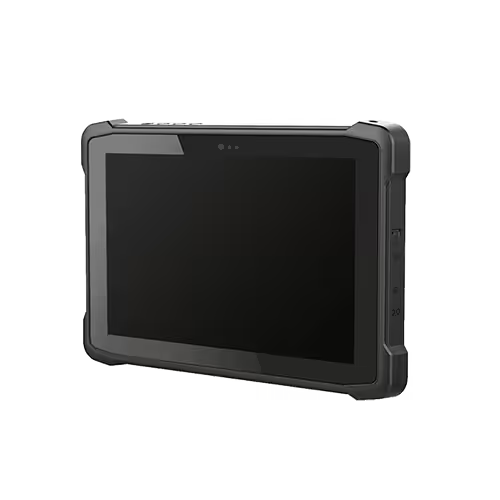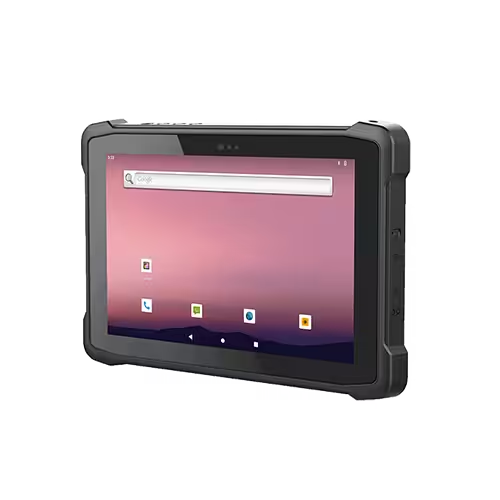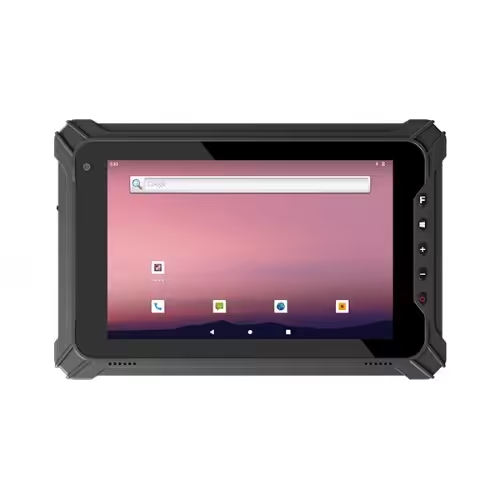
Glove-friendly rugged tablets need a touchscreen that responds accurately to the gloves employees actually wear. Reliable operation depends on the glove material, fit, touch settings and working conditions. A tablet described as supporting “glove mode” still needs testing with the intended gloves and applications.
This matters wherever workers use protective gloves during inspections, maintenance, handling or outdoor tasks. If the touchscreen repeatedly misses inputs, employees may struggle with simple actions such as opening a work order or confirming a quantity.
The most useful approach is to define the required tasks first. Buyers can then check whether the tablet performs those tasks reliably with the normal protective equipment, screen protector and software.
How Tablet Touchscreens Detect Gloved Input
Capacitive Touch and Glove Modes
Many rugged tablets use capacitive touchscreens. These detect changes in an electrical field when a suitable object, such as a finger, touches the screen.
A glove can weaken the signal between the finger and the touchscreen. Whether the tablet detects the touch depends on the glove and the design of the complete touch system.
Glove modes adjust how the device recognizes input. They can improve response, but they do not make every glove compatible. Juniper Systems, for example, explicitly notes that not all gloves work with its glove profile and that conductive gloves generally perform better.
Pressing harder is not a dependable solution for missed input on a capacitive screen. The appropriate touch setting and glove compatibility matter more.
Resistive Touch and Pen Input
Resistive touchscreens detect physical pressure between layers. This can make them useful for gloved input, although the required pressure, gesture support and display characteristics depend on the product.
A compatible pen offers another input method. Some tablets recognize a capacitive stylus through the touch layer; others support a dedicated pen system.
These pens are not interchangeable across all devices. Confirm the approved pen type, especially when workers need accurate writing, signatures or small selections.
Glove Characteristics That Affect Touch Response
Material and Thickness
Thin disposable gloves and insulated winter gloves create different conditions for a touchscreen.
Glove material, coatings, layers and fingertip construction all influence response. Thickness matters, but it cannot establish compatibility by itself. Two gloves of similar thickness may behave differently.
Use the actual glove model during evaluation. General descriptions such as “work gloves” are too broad for a useful purchasing requirement.
| Glove Type | Points to Verify |
|---|---|
| Disposable gloves | Single or double layers, fit and wet-use conditions |
| Coated handling gloves | Fingertip coating, wear and touch response |
| Leather work gloves | Thickness, flexibility and fingertip fit |
| Insulated gloves | Lining, trapped air and input accuracy |
| Conductive touchscreen gloves | Compatible fingertips and response after normal wear |
Fit, Liners and Double Gloves
Loose fingertips can make accurate selection difficult even when the tablet detects contact.
A glove that bunches around the finger may touch a larger area than intended. Thick seams or an internal liner can also affect how precisely workers position their fingers.
Double-glove arrangements need their own checks. A device that works with one layer may respond differently with two.
Where several approved glove types are used, test each one. Procurement should reflect the equipment employees actually wear across different tasks and seasons.
Essential Touchscreen Requirements for Gloved Work
Reliable Taps and Accurate Selection
A usable touchscreen should recognize deliberate taps without requiring repeated attempts. It should also select the intended control.
Test more than large icons on the home screen. Include small checkboxes, dropdown lists, numeric fields and buttons near the edges of the display.
Watch for both missed taps and unintended selections. Increasing sensitivity may improve detection, but the complete configuration still needs to distinguish intended input from other contact.
For business users, the practical result matters: can an employee enter the correct quantity, save a record and move to the next task consistently?
Swiping, Dragging and Required Gestures
Basic tapping is only one part of tablet use.
Workers may need to scroll through instructions, drag a map, zoom into an image or move between application pages. A device that handles taps well may still struggle with continuous gestures through a particular glove.
Test the gestures required by the application. Multi-touch support is relevant only when the workflow uses it; reliable single-finger input may be sufficient for a simple inspection form.
Accessible Touch Modes
Check how employees enable glove mode and whether the setting remains active after restarting or signing in.
Some devices require manual selection, while others offer automatic input detection. Available modes and configuration methods vary by model. Zebra’s documentation, for example, lists different touch options for different device families. techdocs.zebra.com
Workers should be able to reach any required setting without a difficult sequence of small on-screen controls. Where supported, a shortcut or programmable button may simplify switching.

Wet Screens and Gloved Operation
Water Protection and Touchscreen Usability
An ingress-protection rating describes protection against specified dust and water exposure. It does not, by itself, establish how accurately the touchscreen works when wet.
A tablet can resist water entering its housing while still registering unwanted inputs or missing intended touches on the display.
For this reason, waterproof construction and wet-touch performance should be checked separately. Ask the supplier which wet-use conditions the device supports and which input mode is required.
Combined Wet-and-Glove Conditions
Dry-glove operation does not prove that the same glove will work on a wet screen.
Water droplets, a film of water and moisture in the glove can change the input conditions. Some devices use separate profiles to manage these situations. Juniper Systems documents model-specific wet profiles with particular input requirements, illustrating why wet operation should be checked against the exact device guidance.
Build the trial around realistic conditions. For outdoor work, this may involve droplets on the screen. For a chilled work area, it may involve moisture appearing when the device moves between environments.
Follow the manufacturer’s permitted use conditions during testing. The purpose is to verify the expected workflow, not to expose the tablet beyond its specified limits.
Screen Protectors and Application Usability
Screen Protector Compatibility
A screen protector adds another layer between the finger and the touch sensor. Its material, thickness and installation can affect response.
Evaluate the tablet with the protector intended for deployment. A successful demonstration on an uncovered screen does not establish performance with a different protective layer.
Use an approved protector where available and check whether the device has a corresponding touch setting. Keep the selected protector consistent when comparing samples or replacing accessories.
Button Size and Screen Layout
Touch detection and application design work together.
A tablet may detect a gloved finger correctly while the application presents controls that are too small or too closely spaced. Thick fingertips can make adjacent buttons difficult to distinguish.
Useful application features include:
- Clearly separated buttons.
- Readable labels and visible selection feedback.
- Simple numeric entry for common quantities.
- Forms that work at a comfortable display scale.
- Confirmation steps for consequential actions.
Test the on-screen keyboard as well. Employees may find short numbers manageable but struggle with long comments or passwords. A different input method may suit those tasks better.
Styluses and Physical Controls for Difficult Tasks
Compatible Pens for Precise Input
A compatible stylus can help with signatures, annotations and small controls. It can also provide an alternative when a particular glove is difficult to use directly on the screen.
Check whether workers can grip the pen securely while wearing their gloves. A technically accurate pen is less useful if it is awkward to retrieve or easy to drop.
Include pen storage, tethering and replacement tips in the accessory review where relevant. Confirm whether the pen requires charging and whether that fits the working routine.
Physical Buttons for Frequent Actions
Physical controls can reduce dependence on touchscreen input.
A dedicated scan button may make barcode collection easier. Programmable buttons can provide quick access to supported functions, such as opening an application or capturing a photograph.
The location and feel of the controls matter. Test them with the normal gloves and holding position. Workers should be able to identify and press the intended button without repeatedly changing their grip.
These controls are especially useful when the same action occurs throughout the shift.
Frequently Asked Questions
Can Software Updates Improve Glove-Touch Performance?
They can, when the manufacturer changes touch settings or controller firmware. However, an update cannot guarantee compatibility with every glove. Repeat important checks after changes that affect touch operation.
Does Glove Mode Work Before Login?
That depends on the device and how its settings are applied. Check the lock screen, password entry and sign-in process separately. Successful operation inside an application does not prove that every earlier screen behaves the same way.
Can Glove Compatibility Change Between Device Configurations?
Yes. Different touch panels, protectors or software configurations can affect performance. For repeat purchases, identify the approved configuration and ask the supplier to notify you of relevant changes.
Conclusion
Glove-friendly rugged tablets should provide accurate, repeatable input with the gloves and applications used on the job. Glove mode is a useful feature, but the complete working configuration determines the result.
Evaluate actual gloves, required gestures, wet conditions, screen protection and application controls before purchasing. A practical trial gives buyers a clear basis for selecting a device employees can use comfortably throughout their work.